
Your podcast is producing great content every week. The problem is that most of it never reaches the people who need to see it. Social media clips, audiograms, and short-form video are the fastest way to extend a podcast's reach, and you do not need a desktop editing suite to make them.
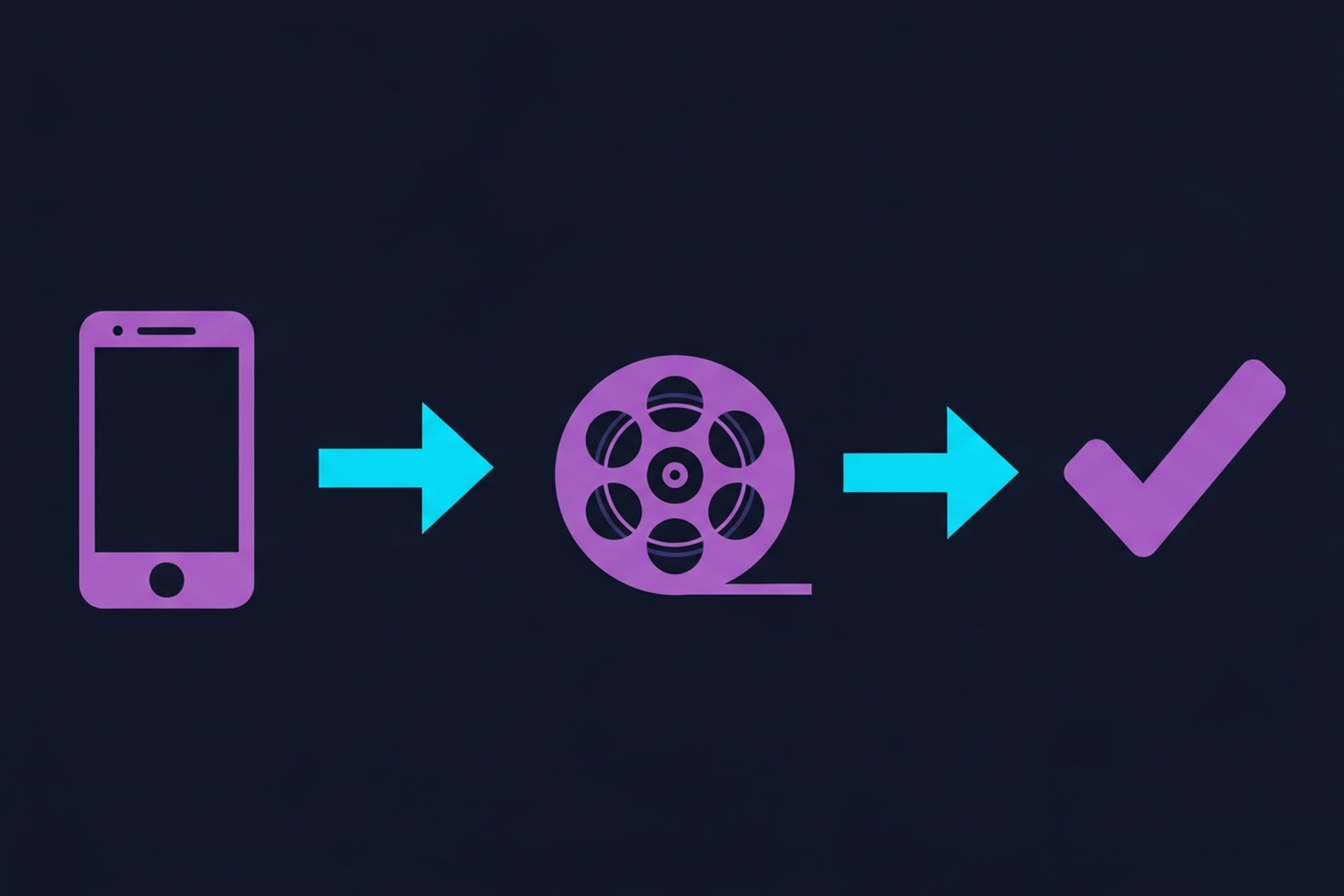
Your phone is capable of handling the entire workflow, from trimming raw footage to adding captions to exporting a finished clip ready for LinkedIn or Instagram. This guide breaks down exactly how to do it, which apps work best for B2B teams, and how to build a repeatable mobile editing process that does not eat your afternoon.
Most B2B podcast producers focus their energy on the recording and post-production workflow. The repurposing side often gets treated as an afterthought, handled by someone on the marketing team with five spare minutes between meetings.
That gap is a real missed opportunity. Short video clips from podcast episodes consistently outperform static posts across LinkedIn, YouTube Shorts, and Instagram Reels. Buyers and prospects engage with video at higher rates, and clips that feature a speaker's face and voice build trust faster than any written asset.
The good news is that mobile editing has improved dramatically. Apps available today on iOS and Android handle trimming, caption generation, text overlays, and aspect ratio conversion with enough quality for professional B2B use. You do not need to wait for an editor or open a laptop.
Before you touch an editing app, know what you are working with. A strong podcast clip for B2B audiences typically has:
CapCut is one of the most capable free video editing apps available on both iOS and Android. For podcast teams, the auto-caption feature alone justifies using it. You upload your clip, tap Auto Captions, and the app transcribes the audio and places styled captions directly on the video. Editing individual caption lines is straightforward in the timeline.
CapCut also handles aspect ratio conversion well. You can flip a horizontal podcast recording into a vertical 9:16 format for Reels or Shorts without cropping out your speaker's face.
Best for: Teams that need fast captions and multi-platform exports from a single app.
If your production team already uses Descript for editing and transcription, the mobile app extends that workflow to your phone. You can pull clips from existing projects, edit by cutting lines of text rather than dragging timeline handles, and export directly from your phone.
Descript's word-based editing is especially useful for podcast clips because you are literally editing the transcript rather than scrubbing through audio waveforms. It is a different mental model that many podcast producers find faster for clip creation.
Best for: Teams already using Descript who want a consistent editing environment across devices.
Premiere Rush is Adobe's mobile-first video editor and it connects directly to Premiere Pro on desktop. For B2B teams with brand guidelines and template requirements, Rush lets you set up branded sequences with your logo, fonts, and color palette, then apply them to any new clip.
The interface is more structured than CapCut and better suited to teams with multiple people contributing clips. You can share project templates across your team so every clip looks consistent, regardless of who edited it.
Best for: Teams with existing Adobe workflows and strict brand standards.
InShot is a lightweight option that prioritizes speed. If your main goal is to trim a clip, add a text overlay, and export it in the right dimensions, InShot handles that workflow in under five minutes. There is less depth than Premiere Rush or CapCut, but the simplicity is its advantage.
Best for: Fast single-person workflows where the goal is getting a clip out quickly.
Here is the process from raw footage to finished clip using CapCut as the example.
Step 1: Identify the clip
Start with your episode transcript or show notes and mark the moments that work as standalone clips. Look for strong opinions, surprising data points, or memorable one-liners. You are looking for content that holds up without context from the rest of the episode.
Step 2: Export the raw segment
If you recorded video during your episode (via Riverside, Squadcast, or a similar platform), download the video file to your phone or use the platform's mobile app to access the recording. Most remote recording platforms now offer mobile apps that make this step straightforward.
Step 3: Import into your editing app
Open CapCut, start a new project, and import the raw clip. Use the timeline to trim the start and end so the clip opens cleanly on your hook and ends before any dead air.
Step 4: Add captions
Tap the Text option and select Auto Captions. Let the app transcribe the audio. Review the captions for any errors, especially proper nouns, acronyms, or industry terminology. Adjust font size and position so captions are readable without covering your speaker's face.
Step 5: Add a text overlay for context
A single line of text at the top or bottom identifying the show or episode number gives viewers enough context to find the full episode. Keep it brief: the show name and the guest's name or episode title.
Step 6: Adjust the aspect ratio
Most B2B podcast teams publish to LinkedIn (1:1 or 4:5), Instagram Reels (9:16), and sometimes YouTube Shorts (9:16). CapCut lets you set the canvas size and then reframe the clip so your speaker remains centered. For horizontal recordings, the auto-reframe option handles this automatically.
Step 7: Export and publish
Export at the highest available resolution. CapCut exports directly to your camera roll, and from there you can post directly to LinkedIn, Instagram, or schedule via a social media tool.
The teams that get consistent value from their podcast are the ones who systematize the repurposing step. Here is a simple framework:
The phone editing workflow shines here because it removes the dependency on a dedicated editor for every clip. Anyone on the team can pull a clip, run it through CapCut, and have it ready to post in under 20 minutes.
Several newer AI tools add text overlays, generate scripts from audio, and even create entirely new video formats from audio content. Tools like Opus Clip and Vidyo.ai automatically identify the most shareable moments in a longer recording and generate trimmed clips with captions. While these tools are primarily desktop-based, they integrate with mobile publishing workflows and reduce the amount of manual editing required.
For B2B teams that want a fully handled repurposing operation without managing the editing themselves, Podsicle Media builds the entire clip and audiogram workflow into every production package. Your team gets finished clips ready to post, not raw footage waiting in a camera roll.
Mobile editing covers most use cases for social clips. But there are situations where desktop editing or professional post-production is the better choice: multi-camera episodes with complex cuts, branded sizzle reels for sales decks, or any clip intended for a conference presentation or paid media.
For your standard weekly social clips, your phone is fully capable. For anything that represents the company in a high-stakes context, bring in a production partner.
Editing podcast video clips on your phone is not a workaround. It is a legitimate, fast, and increasingly standard part of the B2B content workflow. The apps available today handle captions, aspect ratios, text overlays, and brand elements with enough quality for professional use.
The key is having a repeatable process so clips are not a manual effort every time. Identify your moments, trim the clip, add captions, export, and post. Repeat consistently and your podcast will reach far more of your audience than the people who tune in to the full episode.
For teams that want the repurposing handled entirely by a production partner, schedule a call with Podsicle Media to see what a done-for-you clip workflow looks like.